
Welcome to WyzBooks
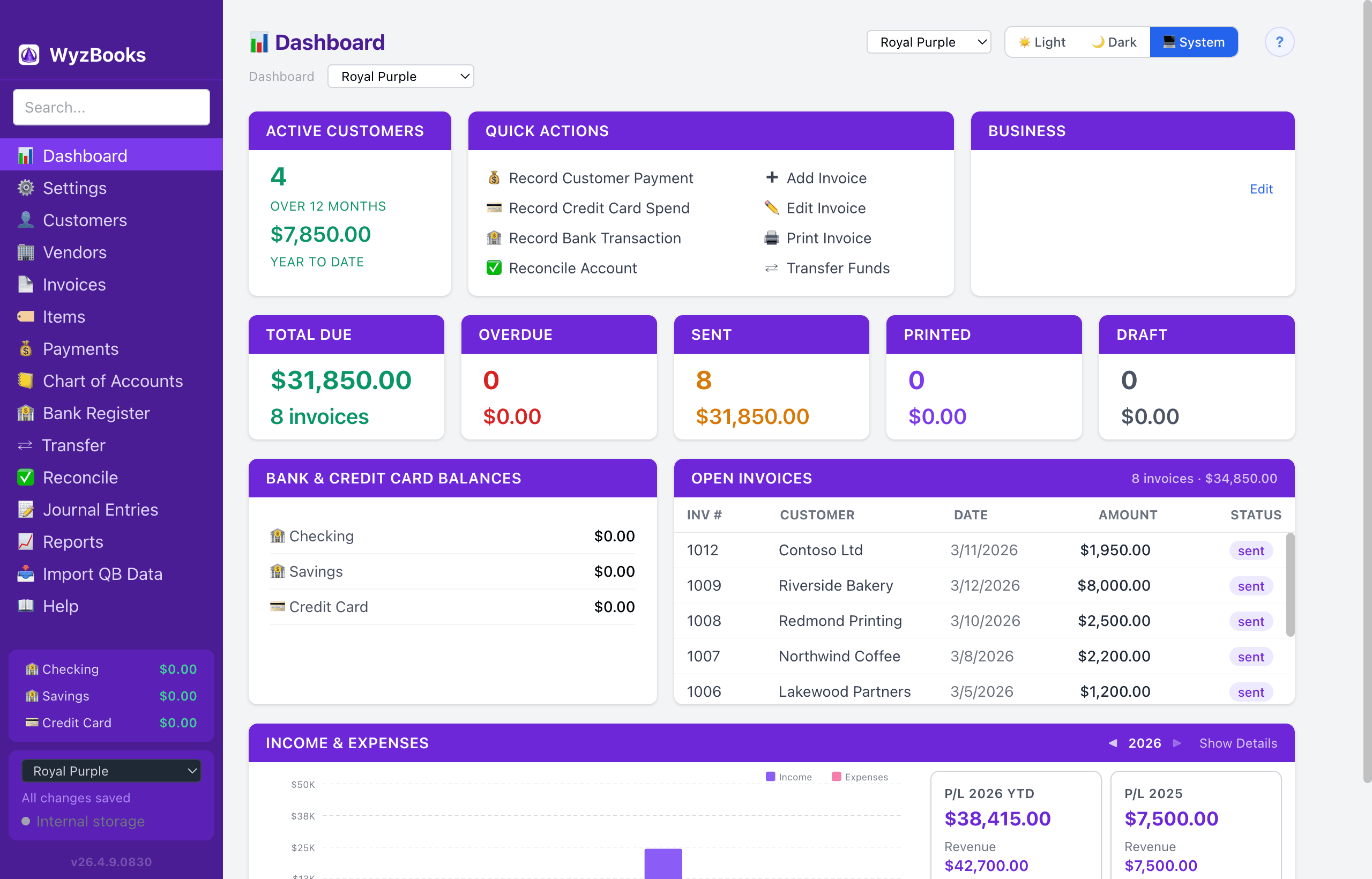
WyzBooks is a macOS desktop accounting application for small businesses. It provides double-entry bookkeeping, invoicing, payment tracking, bank reconciliation, and financial reporting.
Quick Start
- Set up your Chart of Accounts — The app comes with 19 default accounts (numbered 1000–6800). Add, edit, or deactivate accounts as needed.
- Add Customers & Vendors — Create contact records for the people and companies you do business with.
- Create Invoices — Bill your customers with multi-line invoices. Track quantities, rates, and descriptions per line item.
- Record Payments — Apply customer payments against open invoices. The app automatically updates invoice status and A/R balances.
- Enter Transactions — Use Journal Entries for general transactions, the Bank Register for bank activity, or Transfers for moving funds between accounts.
- Reconcile — Match your bank statement to the register to ensure your books are accurate.
- Run Reports — 17 financial reports including Balance Sheet, P&L, Trial Balance, A/R Aging, General Ledger, and more.
Migrating from QuickBooks?
Use the QuickBooks Import page to bring in your existing data. The recommended workflow is: Reset → import an IIF file (accounts, contacts, items) → import a CSV Transaction Detail (all transactions) → optionally enrich with a second CSV for invoice line item detail.
Sidebar Navigation
The left sidebar shows all sections of the app. You can drag and drop menu items to reorder them. Your custom order is saved automatically. Reset the order from Settings.
If you don't use Accounts Payable, you can hide vendor-related features entirely from Settings.
Keyboard Shortcuts
Note
- ⌘O — Open file
- ⌘S — Save
- ⇧⌘S — Save As
- ⌘I — Import CSV/IIF
- ⌘W — Close file (or close tab when Tabs are enabled)
- ⌘, — Settings
- ⌘T — New tab (when Tabs are enabled)
- ⇧⌘] — Next tab
- ⇧⌘[ — Previous tab
- ⌘[ — Back (navigate to previous page in current tab)
- ⌘K — Global finance search (accounts, invoices, transactions)
- ⌘F — Find in Page (text search within the current view)
- ⌘G / ⇧⌘G — Find Next / Find Previous
- ⌘Z — Undo last delete (restores the most recently deleted record)
- ⌘D — Delete selected entry (Journal Entries, Bank Register)
- T / Y — In any date field: T = today, Y = yesterday
- Escape — Close or cancel the current edit form