
Settings
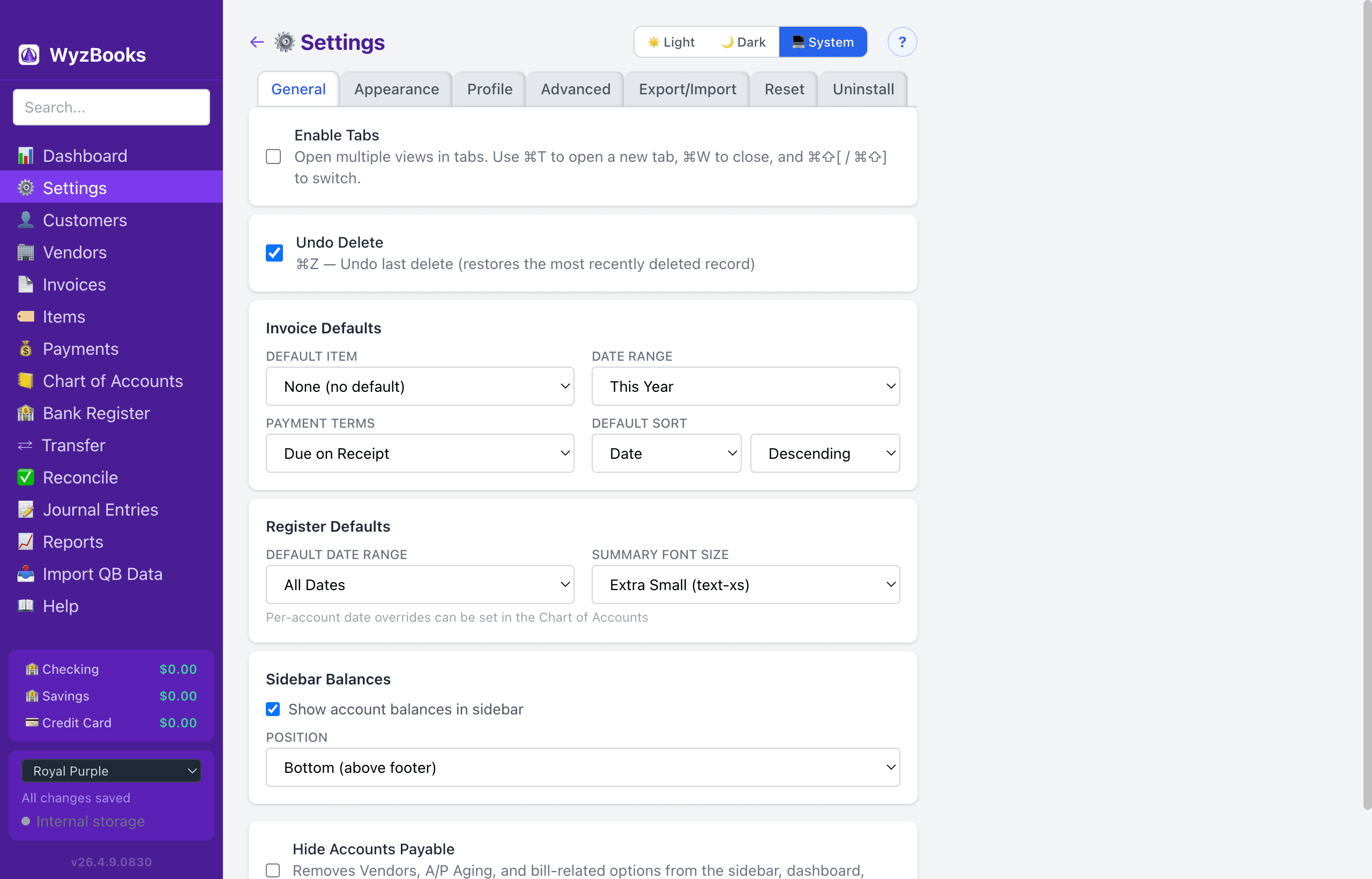
Access Settings from the WyzBooks menu (⌘,), the ⚙️ Settings item in the sidebar. Settings are organized into seven tabs: General, Appearance, Profile, Advanced, Export/Import, Reset, and Uninstall. Your last-used tab is remembered across sessions.
General Tab
- Appearance: Choose between Light, Dark, or System (follows your macOS appearance setting). Changes take effect immediately.
- Compact View: Reduce row padding in all lists and registers for a denser display. When enabled, detailed padding customization is available in the Appearance tab.
- Hide Accounts Payable: Enable this if you don't track bills or vendor payables. Removes Vendors from the sidebar, hides A/P Aging from reports, and removes bill-related options from imports. Existing data is preserved, just hidden.
- Enable Tabs: Turn on in-app tabs to have multiple pages open at once. Each tab preserves its own state (filters, scroll position, edit forms). Use ⌘T to open a new tab, ⌘W to close the current tab, and ⇧⌘]/⇧⌘[ to switch between tabs. Tab deduplication: left-clicking a page already open in another tab switches to it; right-click offers both Open in Same Tab and Open in New Tab. Scroll arrows (◀▶) appear when tabs overflow the window. Sub-options: Restore Tabs on Launch (reopen your previous tabs when the app starts), Restore Tab History on Launch (preserve back/forward navigation within each tab), Open Links in New Tabs (automatically open cross-page links in a new tab instead of replacing the current view), Switch to New Tabs (automatically switch to a new tab when it opens — when off, new tabs open in the background), a Close All Tabs button (✕ All, visible with 2+ tabs), and a Reset Tabs to Default button to clear all tab state.
- Default Invoice Item: Select a default item from your Products & Services list. New invoice lines will be pre-filled with this item's description, rate, and account.
- Invoice Date Range: Set the default date range for the Invoices page. Presets include This Month, Last Month, This Quarter, Last Quarter, This Year to Date, This Year, This & Next Year, Last Year, Last 12 Months, and All Dates.
- Default Payment Terms: Set the default payment terms for new invoices (e.g., Due on Receipt, Net 15, Net 30, Net 60).
- Default Invoice Sort: Set the default sort field (Number, Customer, Date, Due Date, Status, Total, Balance) and direction (ascending/descending) for the invoice list. A Reset Sort button in the invoice list returns to this default.
- Register Date Range: Set the default date range for Account Register, Bank Register, and Credit Card Register. Options: All Dates (default), Previous Month, This Month, Last Month, This Quarter, Last Quarter, Year to Date, This Year, This & Next Year, Last Year, Last 12 Months. Per-account overrides can be set in the Chart of Accounts.
- Summary Banner Font Size: Set the font size for the top/bottom summary bars on registers and invoices. Options: Extra Small (default), Small, Normal, Large.
- Sidebar Menu Order: Drag and drop sidebar items to reorder them. Your custom order persists across sessions. A "Reset to Default" button appears when the order has been customized.
- Global Search: A search field at the top of the sidebar searches across all journal entries (by payee, reference, note, account name), invoices (by number, customer, status, line descriptions), and accounts (by name, number, type). Results appear in an overlay dropdown grouped by type. Click a result to navigate directly: journals scroll to the entry with a blue highlight, invoices open the editor, accounts open the register. Minimum 2 characters to search. Clear with the red X button or press Escape.
- Sidebar Status: The sidebar footer shows a two-line status indicator. Line 1: colored dot + label (hostname for cloud sync, filename for file mode, or "Internal storage"). Line 2: status tag (connected, connecting, offline, shared, standalone, or cloud offline). Cloud state flashes for 5 seconds on connection changes, then settles to the save state (All changes saved / Saving / Unsaved changes). A nav theme preset picker appears at the top of the footer, letting you switch sidebar themes without opening Settings. It shows the same presets available in Settings > Appearance > Left Sidebar.
- Reload App: Full page reload. Resets current view, tabs, and re-reads all settings from disk. Equivalent to Cmd+R.
- Help Search: The Help & Documentation sidebar includes a search field that filters topics by title and content. On first keystroke, all 24 topic files are loaded for full-text search.
- Undo (⌘Z): Press ⌘Z to undo the most recent delete operation. Supports contacts, items, invoices, payments, accounts, journal entries, and transfers. The undo stack holds up to 20 deletions and resets when the app is closed. A success toast confirms the restore.
- Notifications: Validation errors, success messages, and status updates appear as toast notifications in the bottom-right corner. Toasts auto-dismiss after 5 seconds (8 seconds for errors) and can be manually closed with the × button.
Advanced Tab
- Backup & Restore: Manage your data backups. Shows available backups sorted by date with file sizes. Backup Now creates an immediate backup. Restore replaces your data with a selected backup (with confirmation dialog and safety copy). Auto daily backups run on startup and every 24 hours, keeping 30 days of history. Configure via the
[backup]section inwyzbooks.ini. See Cloud Sync & Multi-User for full backup/restore and disaster recovery details. - Reload INI: Re-reads
~/.wyzbooks/wyzbooks.iniand applies all changes without restarting the app. Useful after editing the INI file manually. Shows a brief "Reloaded" confirmation. - Audit Logging: Toggle audit trail logging on or off (default: on). When enabled, all data changes are logged to ~/.wyzbooks/audit.log and imports to ~/.wyzbooks/audit-import.log. Logs rotate at 1 MB.
- REST API Server: Enable an HTTP API on localhost for external tools, testing, and automation. Configure the port (default 3141, range 1024–65535). When running, a link to the OpenAPI documentation is shown. See the REST API help topic for details.
- Command Line Tool: Install or uninstall the
wyzbooksshell command for terminal access. Choose an install directory from your PATH. See the Command Line help topic for usage details. - Multi-User Mode: Enable file locking and live sync when a shared .wyzbooks file is open (enabled by default). Allows multiple computers to safely edit the same company file on a NAS. A confirmation dialog explains what happens when toggling. See Cloud Sync & Multi-User for full details.
- Cloud Sync: Connect to a remote WyzBooks API server for real-time data synchronization over the internet. Enter a server URL and API key, choose a connect mode (Normal — merge, Push First — local is truth, Pull First — server is truth), then click Connect. A confirmation dialog explains the impact when toggling. Sleep/wake recovery is automatic — three concurrent reconnect mechanisms ensure the sync badge returns to Connected within seconds. See Cloud Sync & Multi-User for full details.
- Check Sync: When Cloud Sync is connected, a Check Sync button verifies data integrity between the local instance and the server by comparing checksums and per-collection record counts.
- Cloud Messaging: When Cloud Sync is enabled, toggle the messaging feature on or off. When on, a compose bar appears on the Dashboard for sending text messages to other connected instances. Messages appear as persistent blue card notifications that must be manually dismissed. A sidebar badge shows the unread message count on all pages.
- Show my own sent messages: When Cloud Messaging is enabled, optionally display your own sent messages in the Dashboard message area alongside messages from others.
- Show dock icon badge: When enabled (default), the macOS dock icon shows a red badge with the unread message count. The badge clears as messages are dismissed. Can also be controlled via
dock-badgein the[cloud-sync]INI section. - Clear Message Queue: When Cloud Sync is connected, clears the server's message buffer. Useful when accumulated messages are no longer relevant.
Appearance Tab
Customize the visual styling of the app across five collapsible theme cards. Use the ▼ Expand All / ▲ Collapse All buttons to open or close all cards at once. All changes are saved to ~/.wyzbooks/wyzbooks.ini.
- Quick Theme: Apply a coordinated theme across all areas at once. Choose from 10 presets (Default, Midnight Blue, Royal Purple, Forest Green, Charcoal, Warm Sunset, Ocean Blue, High Contrast, Slate, Rose) to set Dashboard Cards, Page Backgrounds & Tables, Left Sidebar, and Help Pages together. Shows "Mixed" when different areas use different presets. Below the dropdown, four checkboxes (Content Area, Left Sidebar, Dashboard, Help Pages) control which areas are affected — all checked by default. Uncheck any area to exclude it from the preset cascade. The same checkboxes also control the global theme picker at the top of every page. Individual theme pickers on each page still work as independent overrides.
- Help Pages: Choose from built-in presets (Default, Midnight Blue, Royal Purple, Forest Green, Charcoal, Warm Sunset, Ocean Blue, High Contrast, Slate, Rose) or user-defined presets. Each of the 11 help page elements (headings, body text, tip boxes, code blocks, links, lists, etc.) can be customized via dropdowns for font size and weight, and a swatch grid color picker for text and background colors. Font size and weight dropdowns show a visual preview — each option renders in its actual size or weight in a custom popup. The swatch picker shows an 8×10 grid of all available Tailwind colors. An "Edit custom classes" toggle reveals the raw Tailwind class string for full control. The Help page also has its own theme preset dropdown in the page header for quick switching. Sidebar topic highlights use the theme's accent color.
- Compact View Padding: Visible when Compact View is enabled in the General tab. Adjust horizontal and vertical padding for 6 element types: table headers, table cells, register cells, checkbox columns, action columns, and div rows. Choose from a preset or customize each element individually.
- Left Sidebar: Customize sidebar colors and styling. Choose from presets (Default, Midnight Blue, Royal Purple, Forest Green, Charcoal, Warm Sunset, Ocean Blue, High Contrast, Slate, Rose) or customize 8 elements: background, border, title, menu items (including text color, size, weight, padding), active item highlight, hover effect, footer, and panel background (offset background for the sidebar balance panel and footer area, providing visual depth). Colors are selected via swatch grid picker. A live mini-preview shows changes in real time.
- Page Backgrounds & Tables: Customize core UI elements across the entire app. Separate settings for Light and Dark mode, each with 10 keys: content background, page headings, primary/secondary buttons, card background, table headers, row hover, focus ring, links, and labels. Colors are selected via swatch grid picker. Choose from presets (Default, Midnight Blue, Royal Purple, Forest Green, Charcoal, Warm Sunset, Ocean Blue, High Contrast, Slate, Rose) or customize individually.
- Dashboard Cards: Customize dashboard stat cards, card header bars, chart colors, and invoice status badges. Choose from presets (Default, Midnight Blue, Royal Purple, Forest Green, Charcoal, Warm Sunset, Ocean Blue, High Contrast, Slate, Rose) or customize individually. Settings include card header background, title styling, card background, value/subtitle text, status badges (sent/draft/printed), P/L text colors, and income/expense chart bar colors. Fields are ordered to match the live mini-preview from top to bottom.
- Save as Preset: Save the current configuration for any theme area as a named preset. Presets are stored as
[preset-help-theme:Name],[preset-compact-view:Name],[preset-nav-theme:Name],[preset-global-theme:Name], or[preset-dashboard:Name]sections in wyzbooks.ini and appear in that area's preset dropdown. - User-Defined Presets: Add custom presets by editing wyzbooks.ini directly. Create a section like
[preset-help-theme:My Theme],[preset-nav-theme:Midnight],[preset-global-theme:Corporate], or[preset-dashboard:Bright]with key=value pairs for that theme area's keys.
See INI Options for the full configuration reference.
Profile Tab
Enter your business information for use on printed invoices and other documents. Fields include: Company Name, Short Name (used in save filenames), Legal Name, Address, Phone, Fax, Email, Website, EIN, State Tax ID, Industry, Entity Type, Fiscal Year End, Payment Terms, and Contact information.
- Timezone: Select your business timezone from the IANA timezone list (e.g., America/New_York). Defaults to your system timezone. Used for date calculations and file naming.
- Logo: Upload a company logo image (PNG, JPG, GIF, SVG). The logo appears on printed invoices (80×80px max) and the Dashboard business info card. Click "Remove" to delete the current logo.
- Country: Uses an autocomplete dropdown with strict validation — only recognized country names are accepted.
Export/Import Tab
Export or import all your settings to transfer them between machines. The exported file includes your appearance theme, business details, company logo, sidebar menu order, account visibility (active/inactive), INI theme customizations (help theme, nav theme, global theme, compact view padding, user presets), and all other preferences.
- Export Settings — Saves all settings to a JSON file that you can copy to another computer.
- Import Settings — Loads settings from a previously exported file. The page reloads automatically to apply all changes.
See Migrating to Another Mac for the full migration procedure.
Reset Tab
Erase data, settings, and/or themes to start fresh. Three independent checkboxes let you choose what to reset:
- Reset Data — Erases all accounts, contacts, invoices, payments, journal entries, and items. Returns to the default 19-account chart of accounts.
- Reset Settings — Erases all preferences, business details, and sidebar menu order. Returns to default settings.
- Reset Themes — Erases all INI theme customizations (help theme, nav theme, global theme, compact view padding, user presets) and resets the light/dark mode to System. Creates a timestamped backup of the INI file before modifying.
All options require a confirmation dialog before proceeding. Use this before a fresh import from QuickBooks.
When Cloud Sync or Multi-User Mode is active, both are automatically disconnected and disabled before a reset is performed. A yellow notice appears on the Reset tab when either mode is active, alerting you that the reset will disconnect these services.
Uninstall Tab
Completely remove WyzBooks and all its data from your Mac. The tab scans for WyzBooks files across these locations:
- App data: ~/Library/Application Support/WyzBooks
- Legacy app data: ~/Library/Application Support/WyzaerdLedger
- Legacy data: ~/Library/Application Support/wyzbooks
- Config/logs: ~/.wyzbooks
- Legacy config/logs: ~/.ledger
- Preferences plist: ~/Library/Preferences/com.wyzaerd.wyzbooks.plist
- Legacy plist: ~/Library/Preferences/com.wyzaerd.accounting.plist
- Saved state: ~/Library/Saved Application State/com.wyzaerd.wyzbooks.savedState
- Legacy saved state: ~/Library/Saved Application State/com.wyzaerd.accounting.savedState
- System app: /Applications/WyzBooks.app
- Legacy system app: /Applications/WyzaerdLedger.app
- User app: ~/Applications/WyzBooks.app
- Legacy user app: ~/Applications/WyzaerdLedger.app
Select the items you want to remove and click Uninstall. The app will quit automatically after cleanup.