
Reports
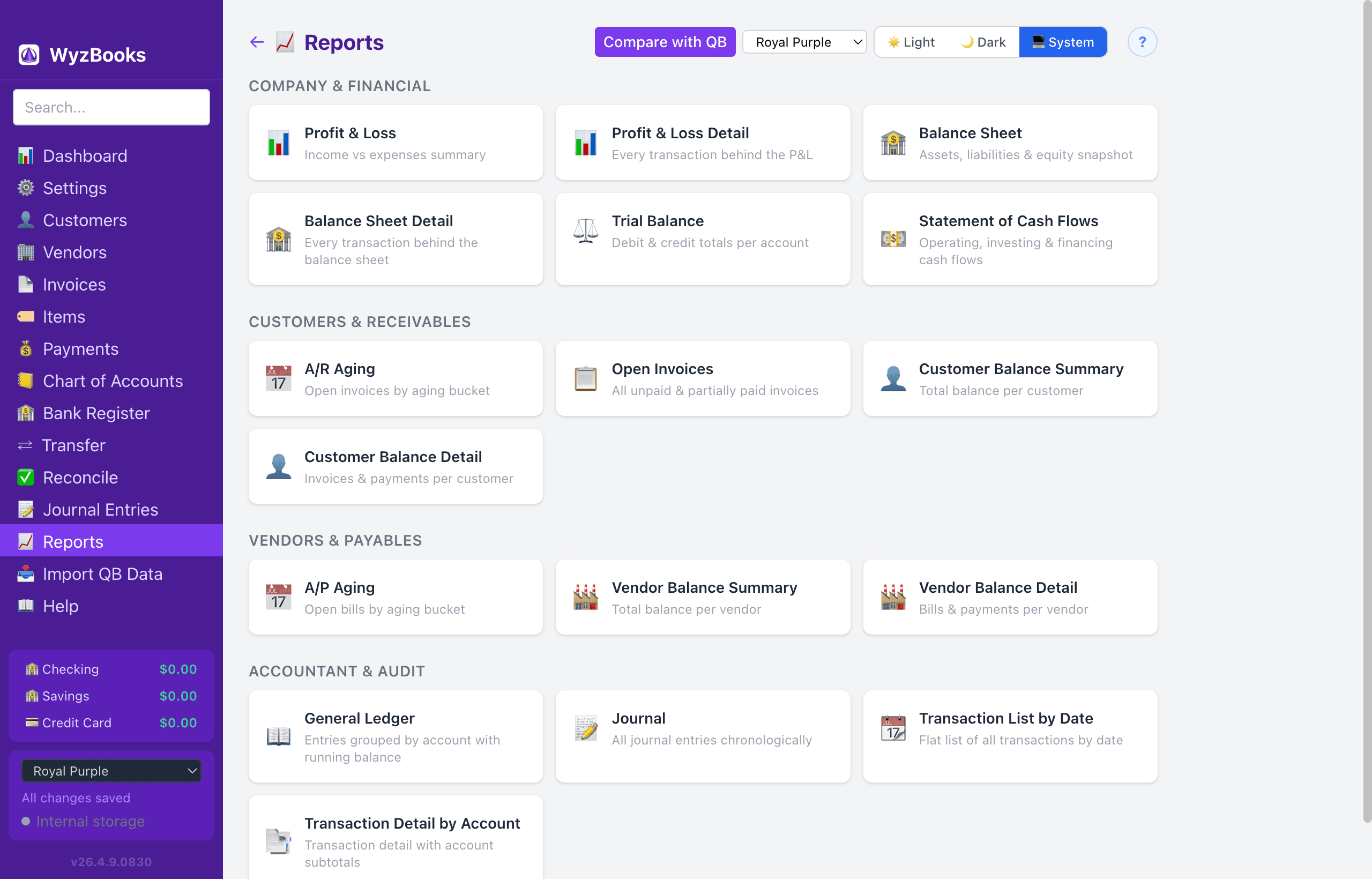
WyzBooks provides seventeen financial reports organized into four categories, all built from your journal entry data. Select a report from the catalog, then adjust the date range as needed.
Date Range
Reports that cover a period (P&L, Trial Balance, General Ledger, Journal, etc.) use a configurable date range defaulting to the last 12 months. Reports that show a point-in-time snapshot (Balance Sheet, Customer Balances, Open Invoices, etc.) use all-time data.
Company & Financial
Profit & Loss (Income Statement)
Shows all Income and Expense accounts with balances for the period and calculates Net Income. Use to see profitability over any time period.
Profit & Loss Detail
Shows every individual transaction behind each Income and Expense account. Use to trace and verify every number on the P&L summary.
Balance Sheet
Shows Assets, Liabilities, and Equity as of the current date (all-time balances). Validates: Assets = Liabilities + Equity + Net Income.
Balance Sheet Detail
Shows every transaction behind each Asset, Liability, and Equity account with running balances. Use to verify the Balance Sheet line by line.
Trial Balance
Lists every account with activity, showing debit and credit totals. Totals must balance (debits = credits). A mismatch indicates a data integrity issue.
Statement of Cash Flows
Indirect method cash flow statement showing Operating, Investing, and Financing activities. Starts with Net Income and adjusts for non-cash changes in accounts.
Customers & Receivables
A/R Aging
Open invoices grouped by aging bucket: Current, 1–30, 31–60, 61–90, and 90+ days overdue. Color-coded by severity.
Open Invoices
All unpaid and partially paid invoices showing total, amount paid, and outstanding balance. Sorted by customer then date.
Customer Balance Summary
One row per customer showing their total outstanding balance (invoiced minus paid). Only customers with non-zero balances shown.
Customer Balance Detail
For each customer, lists all invoices and payments chronologically with running balance. Use to verify individual customer accounts.
Vendors & Payables
A/P Aging
Same structure as A/R Aging, but for bills owed to vendors. Hidden when Accounts Payable is disabled in Settings.
Vendor Balance Summary
One row per vendor showing total outstanding balance from bills. Only vendors with non-zero balances shown.
Vendor Balance Detail
For each vendor, lists all bills with amounts owed. Use to verify individual vendor accounts.
Accountant & Audit
General Ledger
Every journal entry line for every active account, grouped by account, with running balance. Essential for auditing and tracing transactions.
Journal
Chronological list of all journal entries showing each entry's full debit/credit lines. Different from the General Ledger which groups by account.
Transaction List by Date
Flat list of every transaction sorted by date, showing type (Invoice, Payment, Journal Entry, etc.), reference, and description.
Transaction Detail by Account
Like the General Ledger but with explicit debit/credit subtotals per account and a grand total. Useful for account-level auditing.
Exporting Reports
Every report can be exported to CSV or Excel (.xlsx) using the buttons in the report header. The export includes all data currently displayed based on your selected date range and filters.
CSV files can be opened in any spreadsheet application. Excel files use the standard .xlsx format for full compatibility with Microsoft Excel, Numbers, and Google Sheets.
QuickBooks Report Comparison
Click the "Compare with QB" button on the Reports catalog page to open the QB Report Comparison Dashboard. This tool lets you upload CSV exports from QuickBooks and compare them line-by-line against WyzBooks's data for any of the 17 reports.
For each report type, select the corresponding QuickBooks CSV file. The comparison shows matched rows, mismatches (highlighted), and rows only in one system. A summary displays total matched vs. mismatched counts.
This is especially useful after a QuickBooks import to verify that all data transferred correctly.
Use the Copy Results button to copy the comparison table as tab-separated text for pasting into a spreadsheet. Results are also auto-saved as JSON to ~/.wyzbooks/compare-{key}-{timestamp}.json for programmatic analysis.
The comparison handles QB subaccount paths (e.g., "Telephone:Cellular") and accounts exported without numbers. The trial balance uses the selected date range for all accounts. To match QB's cumulative view for balance sheet accounts, set the comparison date range to All Dates.
Also available via CLI (npm start -- --compare trial qb-trial.csv --date-from 2025-01-01 --date-to 2025-12-31) or REST API (POST /api/v1/reports/:key/compare).