
Invoices & Payments
Invoice List
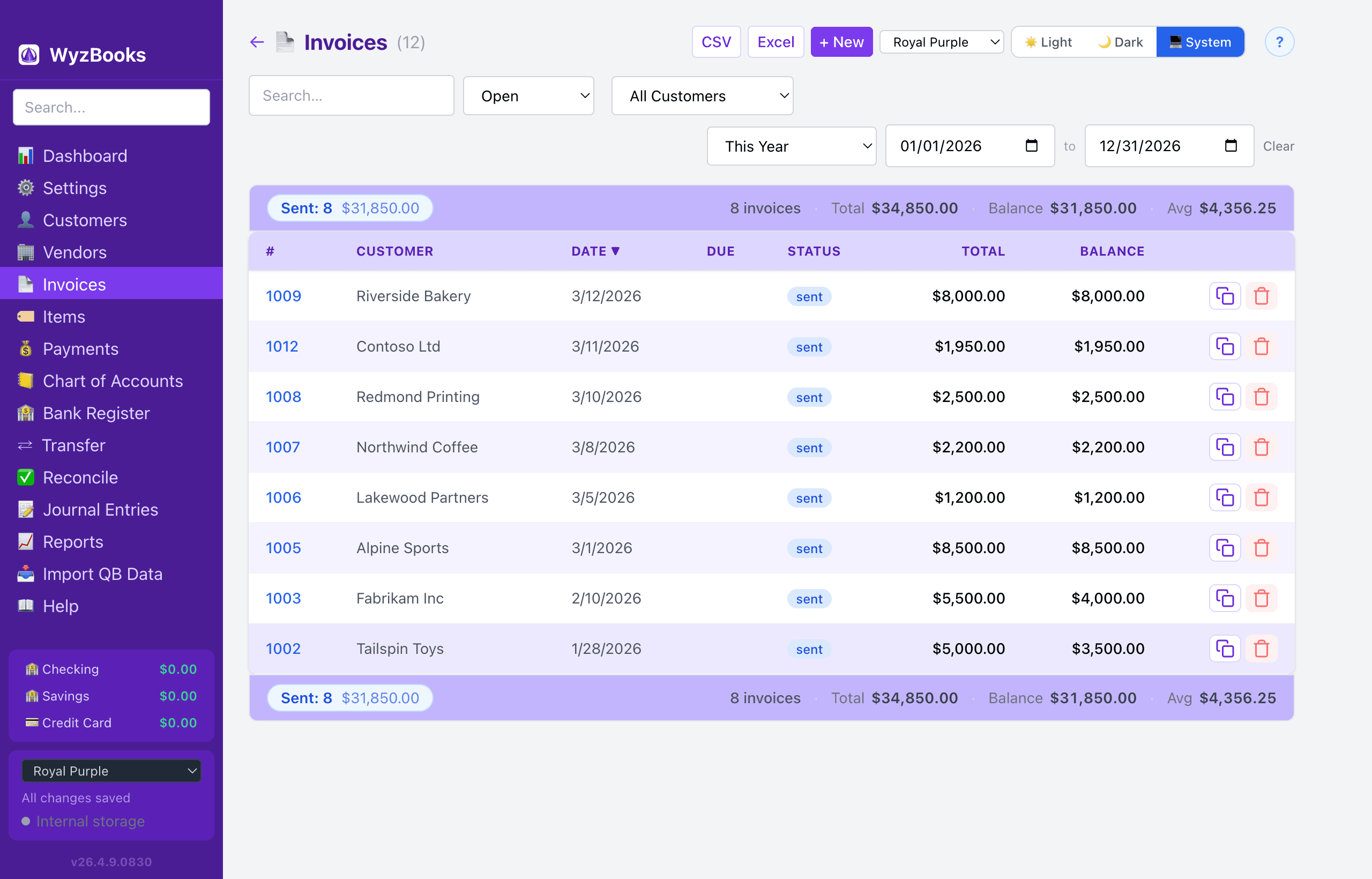
The Invoices page shows all invoices with columns for #, Customer, Date, Due Date, Status, Total, and Balance. Summary bars at the top and bottom display status pills (Draft, Sent, Printed, Overdue, Paid) with count and amount, plus the total outstanding balance and average invoice.
- Filtering: Use the status dropdown (defaults to Open), customer dropdown, and date range selector. Filters include Open, All, Draft, Sent, Printed, Paid, and Overdue. Date presets include This Month, Last Month, This Quarter, Last Quarter, This Year to Date, This Year, This & Next Year, Last Year, Last 12 Months, All Dates, and custom date ranges.
- Sorting: Click any column header (Number, Customer, Date, Due Date, Status, Total, Balance) to toggle sort direction.
- Status Badges: Click a Draft, Printed, or Sent badge directly in the list to cycle the status (Draft → Printed → Sent → Draft) without opening the invoice. Paid and Overdue statuses are not toggleable.
- Actions: Print, Duplicate, and Delete buttons on each row. Right-click any row for a context menu with Print, Edit, Duplicate, Receive Payment (for unpaid invoices), and Delete. Duplicate creates a copy with today's date, a new invoice number, and Draft status. Press ⌘Z immediately after a delete to undo.
- Today Marker: A visual "Today" separator row marks where today's date falls in the list when sorted by date.
Creating & Editing Invoices
Click "New Invoice" to create an invoice. The form includes:
- Customer — Searchable dropdown with an "Active customers only" checkbox (on by default, filters to customers with a paid invoice in the last 12 months). When selected, auto-fills the default payment terms and calculates the due date.
- Invoice # — Auto-generated (starting from 1001), but editable.
- Date & Due Date — Date defaults to today. Due date is auto-calculated from terms but can be overridden.
- Terms — Payment terms dropdown (Net 15, Net 30, etc.). Changing terms recalculates the due date.
- Status — Draft, Sent, Printed, Paid, or Overdue.
- Memo — Free-form notes field.
- Line Items — Each line has: Item (optional dropdown filtered to items used in the last 12 months, with fallback to all active items), Qty, Rate, calculated Amount, a description field (auto-expanding textarea — single line when unfocused, expands to fit content on focus), and an income/expense account selector. Add as many lines as needed.
- Action Buttons — Back/Cancel, Save Invoice, Print, Preview PDF, Save PDF, and Email buttons appear at both the top and bottom of the form for convenience on long invoices.
How Invoices Work (Accounting)
When you save an invoice, WyzBooks creates a balanced journal entry: debit Accounts Receivable for the invoice total, credit each line item's income account for its amount.
This increases your A/R balance (what customers owe you) and recognizes the revenue.
Printing Invoices
Click the Print button on any invoice row, or use Print from the edit form or right-click context menu. This generates a formatted invoice with your company name, customer billing address, line item table (Description, Qty, Rate, Amount), subtotal, amount paid, and balance due.
Recording Payments
Navigate to Payments (in the sidebar) and click the + button. The page header stays visible while the form is open. For quick entry without leaving the Dashboard, use the Record Customer Payment quick action, which opens a popup form.
- Select Invoice — Dropdown shows all open invoices with date, number, customer name, and outstanding amount. Sorted by date (newest first).
- Amount — Auto-fills with the full outstanding balance. You can enter a partial amount.
- Deposit To — Select which bank account receives the payment.
- Method — Check, ACH/EFT, Wire, Credit Card, Cash, or Other.
- Reference # — Check number or wire reference for your records.
- Memo — Optional notes.
Payment Accounting
When saved, the payment creates a journal entry: debit the bank account, credit Accounts Receivable. The invoice's paid amount is updated, and when fully paid, the status changes to Paid.
Partial payments update the invoice's amount paid without changing status to Paid.
Payment List
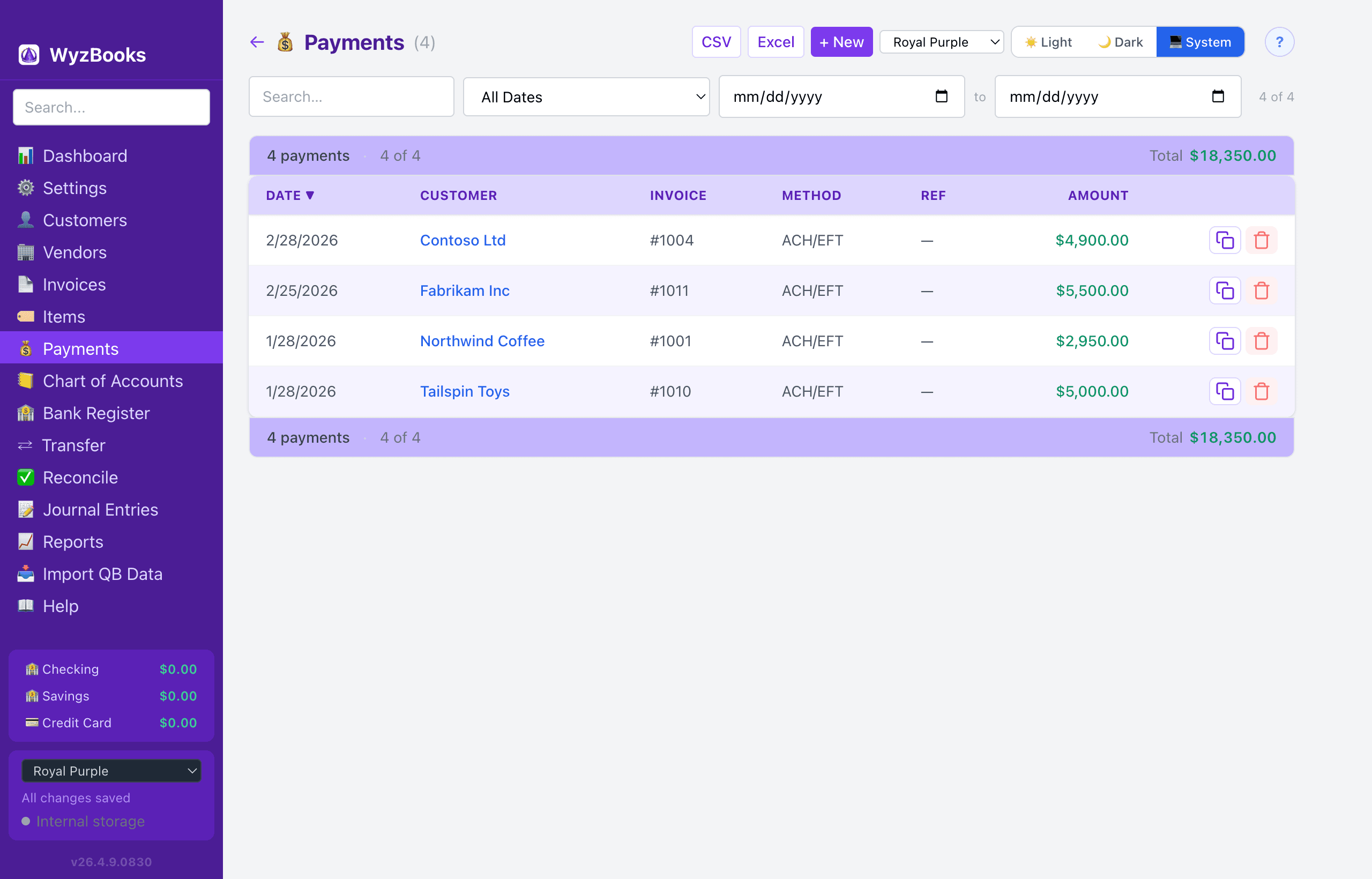
The Payments page shows all payments with Date, Customer, Invoice, Amount, Method, and Deposit Account. Each row has Duplicate and Delete buttons. Right-click for Edit, Duplicate, and Delete options. A today marker row shows where today's date falls in the sorted list.
Exporting
The Invoice list, Payment list, and Items list can each be exported to CSV or Excel (.xlsx) using the buttons in the page header. Exports include all data matching your current filters.