
Chart of Accounts
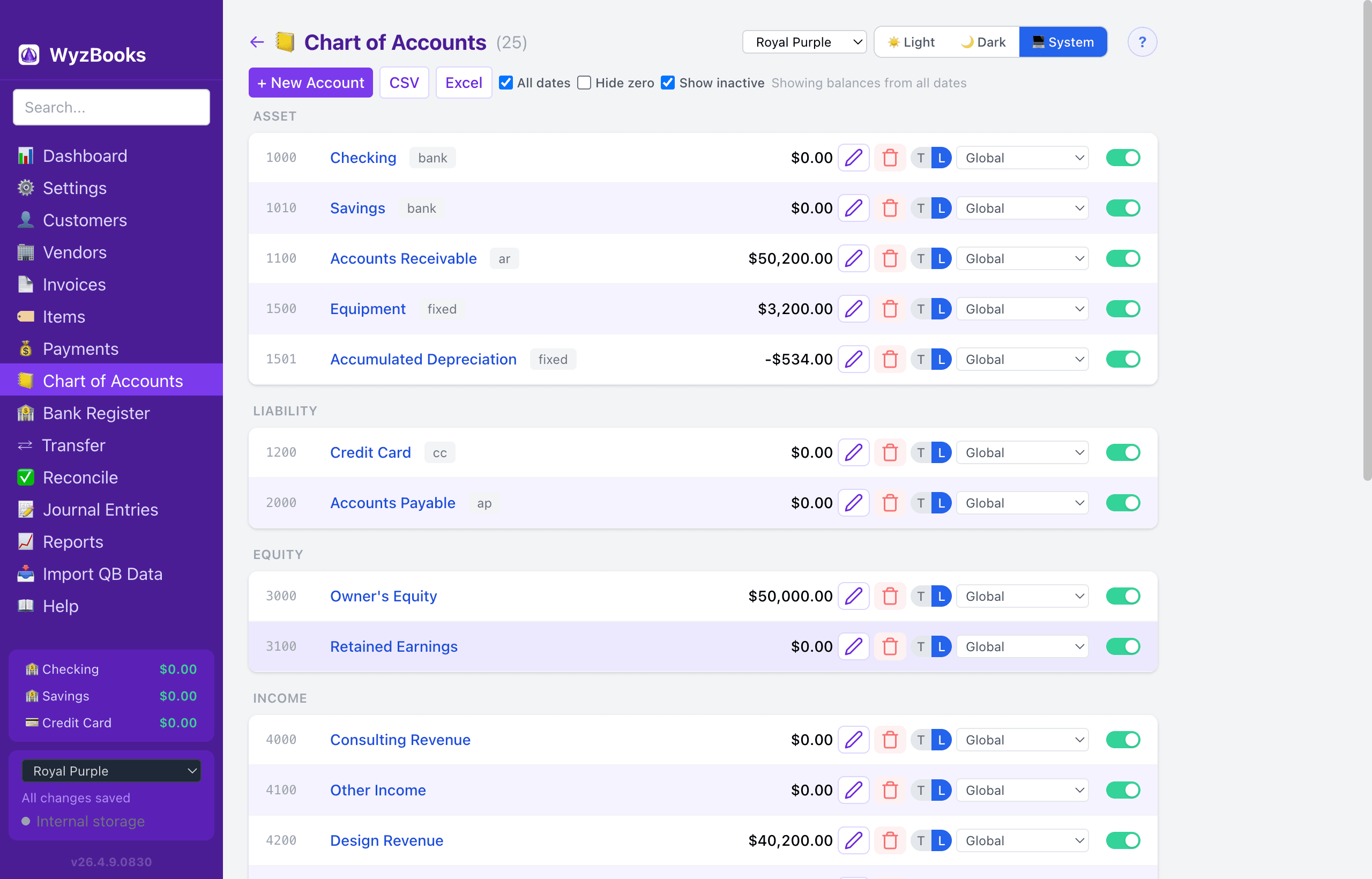
The Chart of Accounts is the foundation of your bookkeeping. Every transaction posts to at least two accounts (double-entry). WyzBooks starts with 19 default accounts numbered 1000–6800.
Account Types
- Asset — What you own: bank accounts, accounts receivable, equipment, inventory. Normal debit balance.
- Liability — What you owe: accounts payable, credit cards, loans. Normal credit balance.
- Equity — Owner's stake in the business: owner's equity, retained earnings, opening balance equity. Normal credit balance.
- Income — Revenue earned: consulting, sales, service income, other income. Normal credit balance.
- Expense — Costs incurred: office supplies, travel, software, rent, utilities. Normal debit balance.
Account Subtypes
- Bank — Checking and savings accounts. These appear in the Bank Register dropdown and on the Dashboard bank balances card.
- Credit Card (CC) — Credit card accounts (Liability type). Also appear in the Bank Register with adapted labels: "Charge" instead of Withdrawal, "Payment" instead of Deposit, and "Balance Due" instead of Balance.
- A/R (Accounts Receivable) — Tracks money owed to you. Automatically debited when invoices are created and credited when payments are received.
- A/P (Accounts Payable) — Tracks money you owe to vendors.
Managing Accounts
- Adding: Click "New Account" at the top. Enter a number, name, type, and optional subtype.
- Editing: Click any account name to open the edit form, or right-click for a context menu.
- Deleting: Each account row has a trash icon button for deletion. The edit form also includes a Delete button. Before deleting, a confirmation dialog warns you how many journal entry lines reference the account. If you proceed, the account is removed but existing journal lines are preserved — they will display as "Unknown Account" in registers and reports. SVG icon buttons match the style used in other registers.
- Active/Inactive Toggle: Each account row has an inline toggle switch (green = active, gray = inactive). Inactive accounts are hidden from all dropdowns, registers, transfers, reconciliation, and dashboard balances. They remain in reports for historical accuracy.
- Show Inactive: Check the "Show Inactive" checkbox at the top to reveal deactivated accounts in the list.
- All Dates: Checkbox (on by default) to show all-time account balances. Uncheck to show year-to-date balances for the current calendar year.
- Hide Zero: Checkbox (on by default) to hide accounts with a $0.00 balance. Uncheck to see every account regardless of balance.
- Default Scroll: Bank and credit card account rows have T (Today) and L (Last Row) toggle buttons. Controls where the register scrolls when opened. "Today" scrolls to the current date; "Last Row" scrolls to the bottom. Also available in the account edit form.
- Default Date Range: Bank and credit card account rows have a dropdown to override the global register date range. Options include Global, This Month, Last Month, This Quarter, Last Quarter, Year to Date, This Year, This & Next Year, Last Year, Last 12 Months, and All Dates. Also available in the account edit form.
Account Register
Click any account name or balance in the Chart of Accounts to view its register. Bank and credit card accounts open in the full Bank Register (with summary bars, inline editing, date presets, and add transaction forms). All other accounts open in the Account Register.
The Account Register shows: date, reference, description, contra account (or "SPLIT" for multi-line entries), debit, credit, and running balance. You can filter by date range and reconciliation status (All / Unreconciled / Cleared / Reconciled). The R column shows ✓ (cleared, blue) or ✓✓ (reconciled, green) — click to cycle through states.
Each row has Duplicate and Delete buttons. Right-click for Edit, Duplicate, and Delete options. A visual "Today" marker row shows where today's date falls in the sorted list. Selecting a payee pre-fills the amount and contra account from the most recent matching transaction.
Exporting
Both the Chart of Accounts and Account Register can be exported to CSV or Excel (.xlsx) using the buttons in the page header.